
Introduction
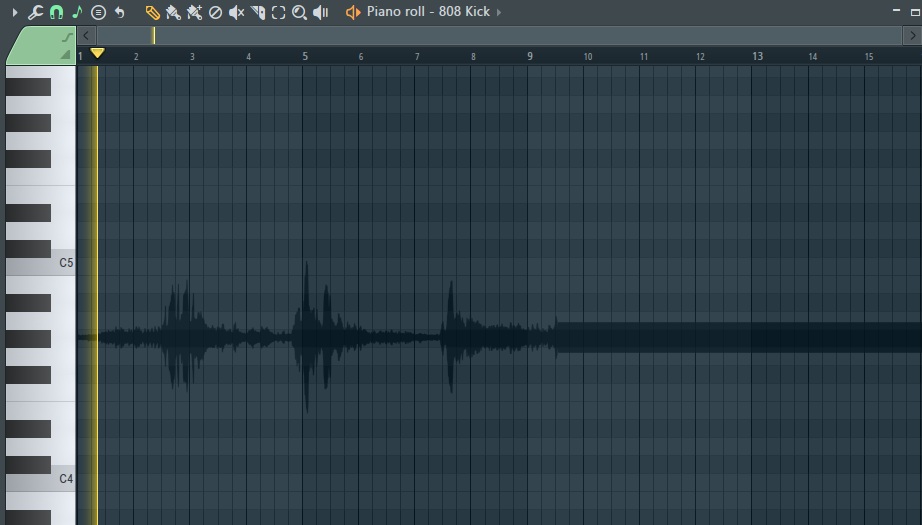
If you use FL Studio regularly, you may have run into a strange situation where a sound wave suddenly appears behind your notes in the Piano Roll. This usually happens after dragging an audio clip into the Piano Roll by accident or experimenting with audio-to-MIDI features.
The good news? This waveform is easy to remove.
In this guide, you’ll learn why the sound wave appears, what it actually is, and the exact keyboard shortcut (Alt + N) to remove it instantly.
Why Does a Sound Wave Appear in the Piano Roll?
The sound wave you see in the Piano Roll is called a Background Waveform. It appears when:
- You drag an audio clip directly into the Piano Roll
- FL Studio links that audio as a note preview reference
- Background waveform view becomes enabled for that Piano Roll
This feature is meant to help line up MIDI notes with audio transients, but it can be confusing if you didn’t enable it on purpose.
How to Remove the Sound Wave From the Piano Roll in FL Studio
The Fastest Method: Use Alt + N (Recommended)
This is the correct and quickest fix.
- Open the Piano Roll
- Make sure the Piano Roll window is active
- Press Alt + N on your keyboard
The sound wave will immediately disappear.
✅ No menus required
✅ Does not delete notes or audio
✅ Works instantly
This shortcut toggles the Background waveform on and off.
Alternative Method: Disable Background Waveform Manually
If you prefer using menus instead of shortcuts:
- Open the Piano Roll
- Click the menu arrow in the top-left corner
- Go to View
- Click Background waveform to turn it off
This does the same thing as Alt + N, just manually.
Does Removing the Waveform Affect Your Audio or MIDI?
No. Removing the sound wave:
- Does not delete the audio clip
- Does not change your MIDI notes
- Does not affect playback or export
It only removes the visual reference from the Piano Roll.
When Should You Keep the Sound Wave Visible?
There are times when the waveform is actually useful:
- Aligning MIDI notes to vocal transients
- Matching drums to audio hits
- Converting rhythms from audio to MIDI
In those cases, you can press Alt + N again to bring it back.
Common Mistakes That Cause This Issue
- Dragging an audio clip into the Piano Roll instead of the Playlist
- Using audio-to-MIDI features without realizing it
- Accidentally pressing Alt + N and forgetting the shortcut
Knowing the shortcut saves a lot of frustration.